Using LeapSpace beyond your web browser
Discover how you can check your claims with LeapSpace in Microsoft Word.

Claim-level evidence checking, built into your writing workflow
When you work in research, the documents you draft matter — a grant application decides whether research is funded; a proposal determines whether a project even gets off the ground.
Understanding how well the claims you make are supported by the wider published literature is important. So is understanding whether the literature contradicts them. To date, this has typically involved stepping away from your draft to run multiple searches on a separate platform. And we’ve heard from the researchers we speak with about just how disruptive and time consuming this can be.
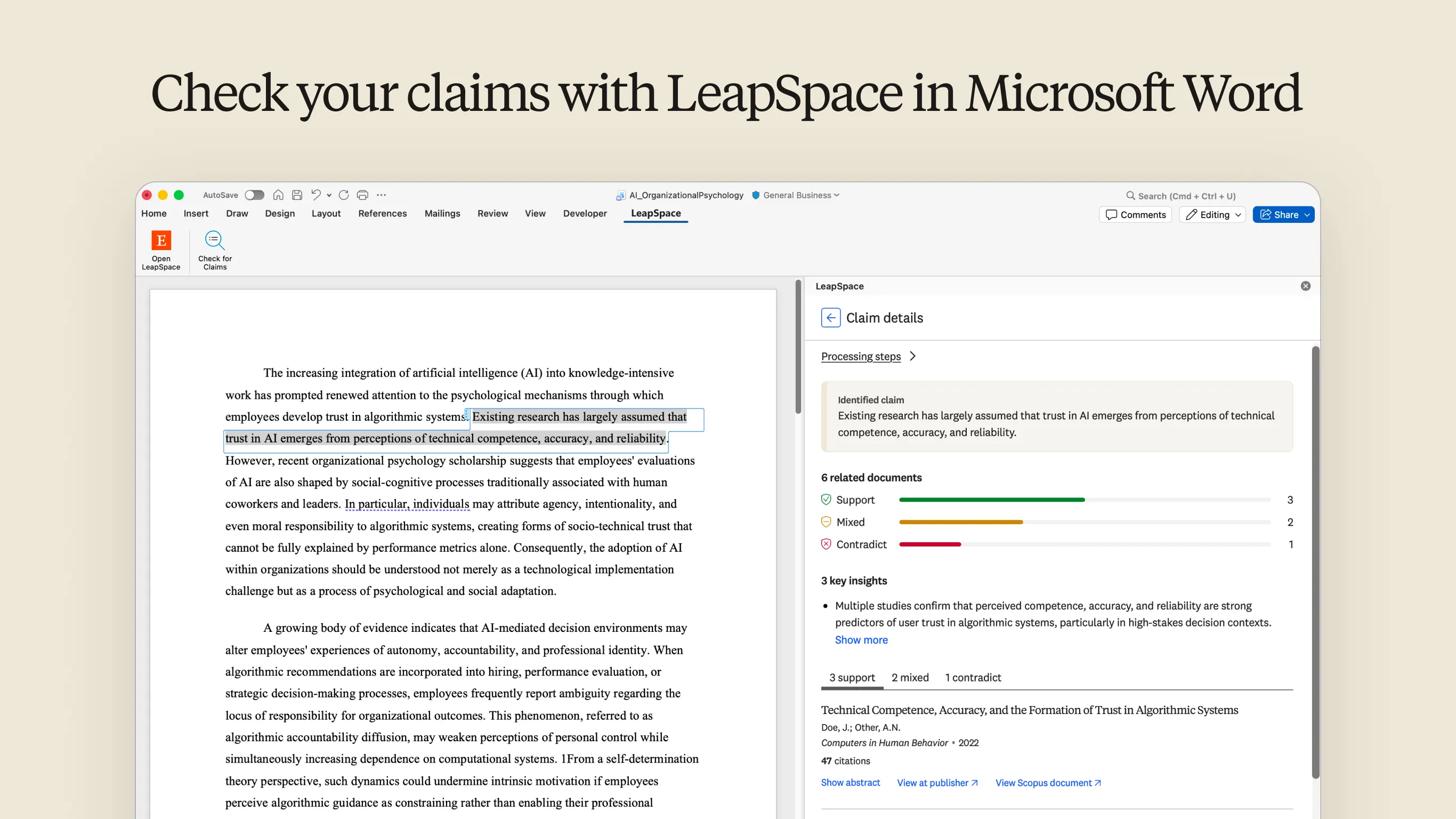
LeapSpace™ integrated with Microsoft Word aims to bring research tools and intelligence directly into your writing environment. And the add-in's current feature, Claim Radar, is now live. It helps you check claims from your document against the 107M+ peer-reviewed and scholarly content indexed in Scopus, surfacing relevant literature and categorizing it into sources that:
Support the claim
Contradict the claim
Present mixed findings
It also highlights key insights and source documents — all inside a task pane in Word, next to your document.
Check your claims with LeapSpace in Microsoft Word
Why introduce this add-in?
Our ambition is to meet our users where they work. And for Adrian Raudaschl, Elsevier’s Senior Director of Product Management, integrating LeapSpace with Word is a natural extension of that philosophy. He explains:
“LeapSpace offers support across the research workflow, including writing and drafting, but we know that Microsoft Word remains the primary environment for scholarly writing. We want to make sure our users can access support in the places they are most productive; this add-in brings us one step closer to achieving that goal.”
Making LeapSpace available within Microsoft Word helps to reduce workflow fragmentation and context switching across multiple tools.
Importantly, it also provides support in areas we know editors and reviewers consider when evaluating research manuscripts. The add-in surfaces literature that may support or contradict an identified claim in the draft, helping researchers understand the broader context of the claim so they can decide how to best strengthen their draft. These capabilities also make it a valuable resource for PhD students and R&D professionals, grant writers, academic faculty—anyone who needs to write evidence-based documents. And it supports multiple types of drafting tasks, including:
Journal manuscripts and research papers
Literature reviews
Grant proposals and funding applications
Technical, scientific and research reports
Theses and dissertations
Conference papers and presentations
Building connectivity across tools — responsibly and securely
“We want to give our users the freedom to work with LeapSpace where they need it most. Security and privacy remain paramount. That’s why we will carefully weigh and consider each opportunity to ensure it meets our Responsible AI Principles around user control, trust and transparency,” Adrian notes.
The add-in doesn't auto-read your full document, and it doesn't access other files or documents on your device. It only processes the text you select to check for claims in your open document, and the only change it makes is highlighting the single claim you're viewing results for. LeapSpace does not use customer questions to train models or retain them for any purpose other than improving the quality of the tool and the answers given. For more details, see the add-in's license agreement.
Accessing and using the add-in
The add-in is suitable for:
Word on the web
Word on Windows with a Microsoft 365 subscription
Word on Mac with a Microsoft 365 subscription
Versions of Word from 2019 onwards on Windows or Macs
It isn't currently available in Word on iPads. Users require paid access to LeapSpace — either via an institutional account or an individual subscriptionopens in new tab/window — and a LeapSpace account. And because the Claim Radar feature runs its search against the LeapSpace knowledge base in real time, an internet connection is required.
Access options
If your institution subscribes to LeapSpace, you may find the add-in is already available in Word — just check your LeapSpace ribbon tab. If it’s not been deployed centrally at your institution, please contact your IT department.
If you have an individual LeapSpace subscription, you can download the add-in from Microsoft Marketplaceopens in new tab/window by clicking on the "Get it now" button. (If you’re on a free plan, you’ll need to upgrade to use this add-in.) Once it's installed, you can activate it by selecting it in the Home tab's Add-ins menu. This opens the LeapSpace task pane and adds the LeapSpace tab (with its commands) to the ribbon.
How to use the add-in
Everything happens in the task pane, which you can open from the LeapSpace tab on the ribbon. Once you are signed into LeapSpace, follow these steps.
Select the text you'd like to check in your document. A paragraph or section of text with statements of fact or findings works best.
Right-click your text selection and choose “Check for Claims” from the context menu. You can also use the “Check for Claims” ribbon command under the LeapSpace tab. While right clicking works great for most selections, if your text sits within a table or has images or hyperlinks embedded, we recommend using the ribbon option.
The add-in detects the claims in your chosen text and lists them in the pane.
Clicking on one of these triggers Claim Radar to check the claim against millions of Scopus records from 7,000+ publishers, sharing its processing steps in real time.
Once its analysis is complete, Claim Radar generates a visual in the task pane, showing the numbers of sources that support, contradict or give a mixed response. There’s also an easy-to-scan list of key insights, along with full source attribution, so you can explore the literature behind each result.
The most relevant sources are selected, although not all sources selected appear in the final analyses — neutral responses are excluded.
Next steps
Interested in learning more about LeapSpace? Sign up for email updates to get the latest news and articles with best practices, user insights, and product updates.