
LeapSpace add-in for Microsoft Word
Its first feature, Claim Radar, checks a claim against the most relevant evidence from the 100+ million scientific records indexed in Scopus without leaving the document you're writing.
LeapSpace Add-in for Microsoft Word Demo Video

LeapSpace Add-in for Microsoft Word Demo Video
For Corporate R&D teams, the LeapSpace add-in for Microsoft Word brings Claim Radar into the writing workflow. A claim can be persuasive and still fail scrutiny. It may be unsupported by the evidence, overstated for the context, or based on findings that no longer hold up. Figuring out which, before an FDA reviewer, a patent examiner, or a stage-gate committee asks the same question, is the actual job. That job hasn't changed in decades. What's changed is how you check it: a colleague's memory, then a database search, now an AI check grounded in the same curated, peer-reviewed literature, running right where you're writing.
The LeapSpace add-in for Microsoft Word puts that check directly inside Microsoft Word. Highlight a claim, and Claim Radar, its first feature, checks it against the most relevant evidence from the 100+ million scientific records indexed in Scopus, without leaving your document.
Catch the gap before the reviewer does, and the difference shows up downstream: fewer review cycles, less rework, a claim that survives the first challenge instead of bouncing back for another round.
Claim Radar isn't new, it's already part of LeapSpace, checking claims against the published literature from a response or inside Writing Coach. Now it's available a third way: directly inside Microsoft Word.
How does Claim Radar work in Microsoft Word?
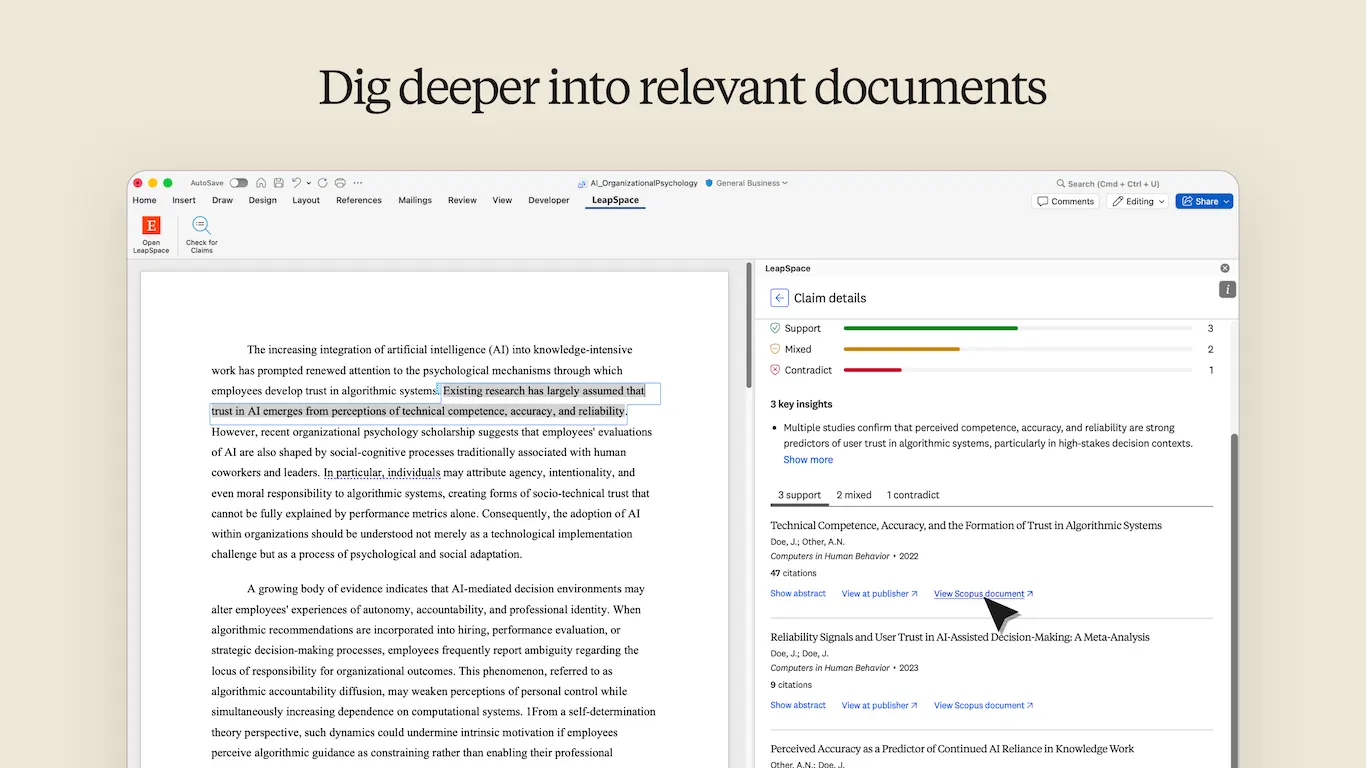
Highlight a passage in your draft. Right-click and select Check for Claims, or use the Check for Claims option under the LeapSpace tab in the ribbon. Claim Radar extracts the claims from that selection and lists them in a task pane alongside your document.
Select a claim and Claim Radar checks against the most relevant sources from the peer-reviewed literature indexed in Scopus, ranked without favoring any one publisher, showing supporting, contradicting, or mixed evidence. Each result links back to its source, an abstract you can read immediately, or the publisher's page for the full article.
Nothing is decided for you. Claim Radar surfaces the evidence; every judgment call, and every edit to the document, stays yours.
How can Corporate R&D teams use Claim Radar?
Same check, same task pane, different stakes depending on what you're writing. Two examples, out of many:
In Pharma, Biotech, and MedTech R&D, that's a mechanism-of-action rationale, a clinical evaluation report, or a trial proposal, checked before a regulatory reviewer sees it.
In Chemicals and Materials, Energy, Electronics, and Vehicles R&D, that's a formulation rationale, a technical data sheet, or a patent disclosure, checked before a stage-gate review or a prior art search.
The same logic extends to food and beverage, agritech, consumer goods, and any other field where a technical or scientific claim has to survive scrutiny before it goes further.
Where can I use Claim Radar in LeapSpace?
The same check now lives in three places.
In LeapSpace responses: Inspect how a specific claim and see how it aligns with the wider literature, not only the source attached to that statement.
Inside Writing Coach: Run Claim Radar on assertions in your own draft as you refine it.
Inside Microsoft Word : Check a claim the moment you write it, without opening anything else.
Same check, same Scopus-indexed literature behind it, wherever you reach for it.
Does Claim Radar read my whole document?
The add-in only processes the text you highlight. It doesn't read the rest of your document, and it doesn't touch other files on your device. The only change it makes is highlighting the claim you're currently viewing results for. LeapSpace does not use customer questions to train models or retain them for any purpose other than improving the quality of the tool and the responses given. For full details, see the add-in's license agreement.
How do I install the LeapSpace add-in for Microsoft Word?
Installing for your team? If your organization restricts access to the Microsoft Office Store, an IT administrator may need to approve or deploy the add-in before users can install it.
Visit the Microsoft 365 Admin Center.
Go to Settings > Org Settings > User owned apps and services and confirm “Let users access the Office Store”opens in new tab/window is turned on.
Go to Integrated apps > Add-ins.
Search for LeapSpace on Microsoft Marketplace and deploy it to your organization or specific people.
Share these instructions with your team: Microsoft's deployment guideopens in new tab/window.
After installation, your team members can open Word, activate the LeapSpace add-in (from Tools > Add-ins on Mac or Home > Add-ins on Windows), sign in with their Leapspace credentials, and start working with their documents.
LeapSpace add-in for Microsoft Word at a glance
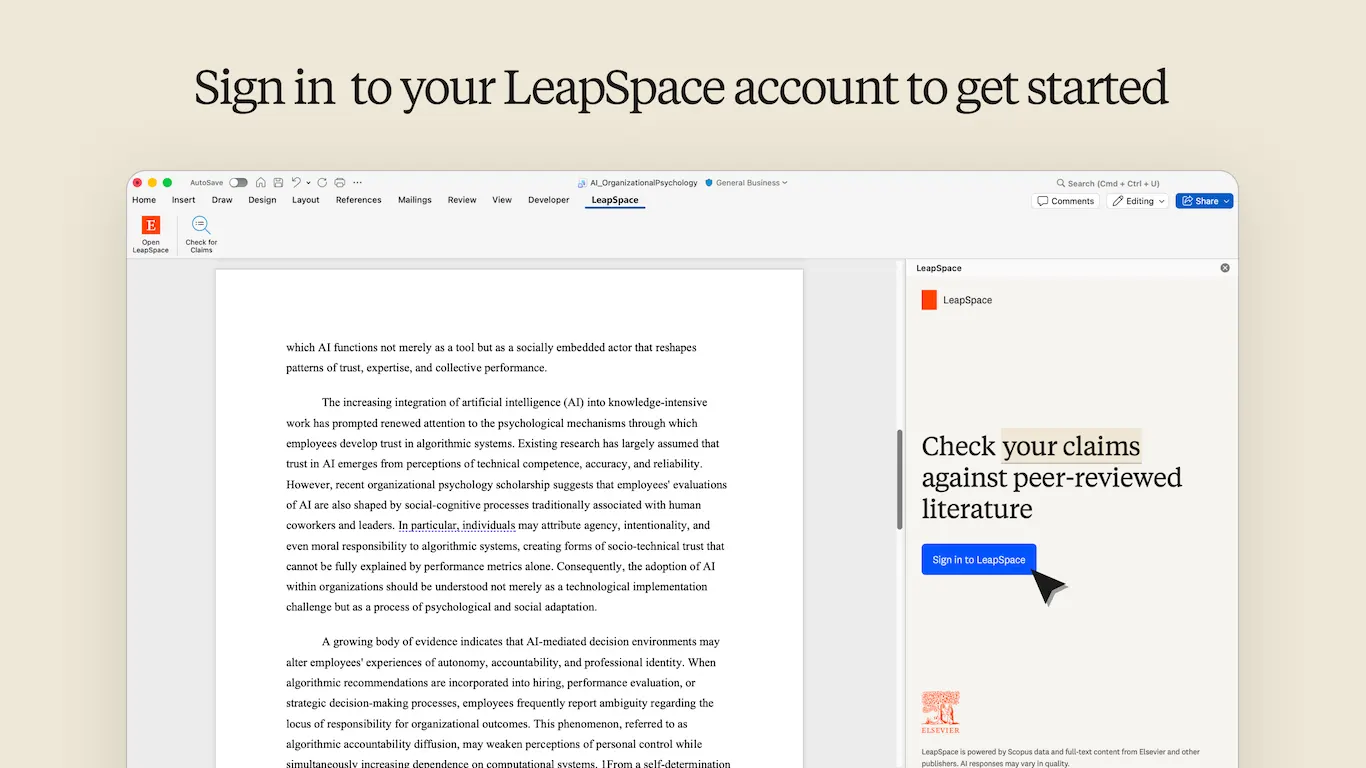
Step 1
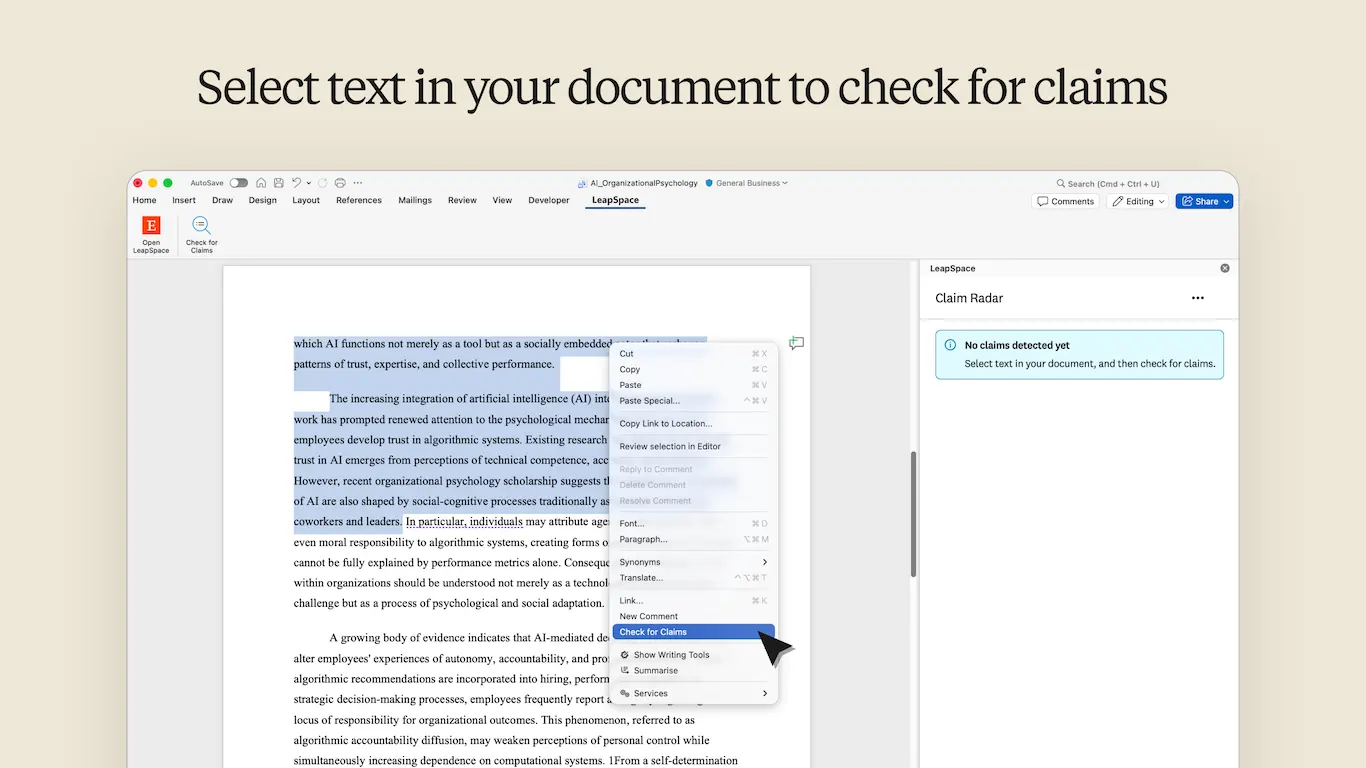
Step 2
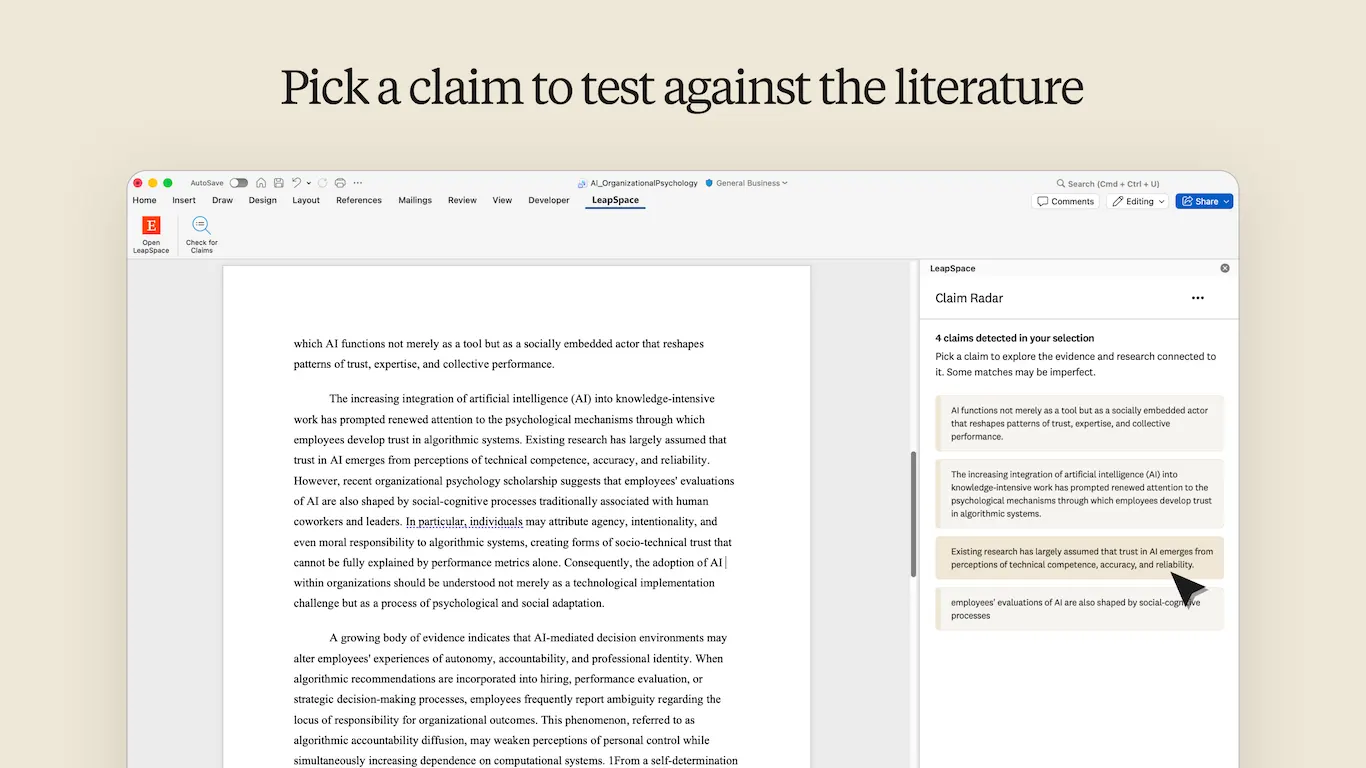
Step 3
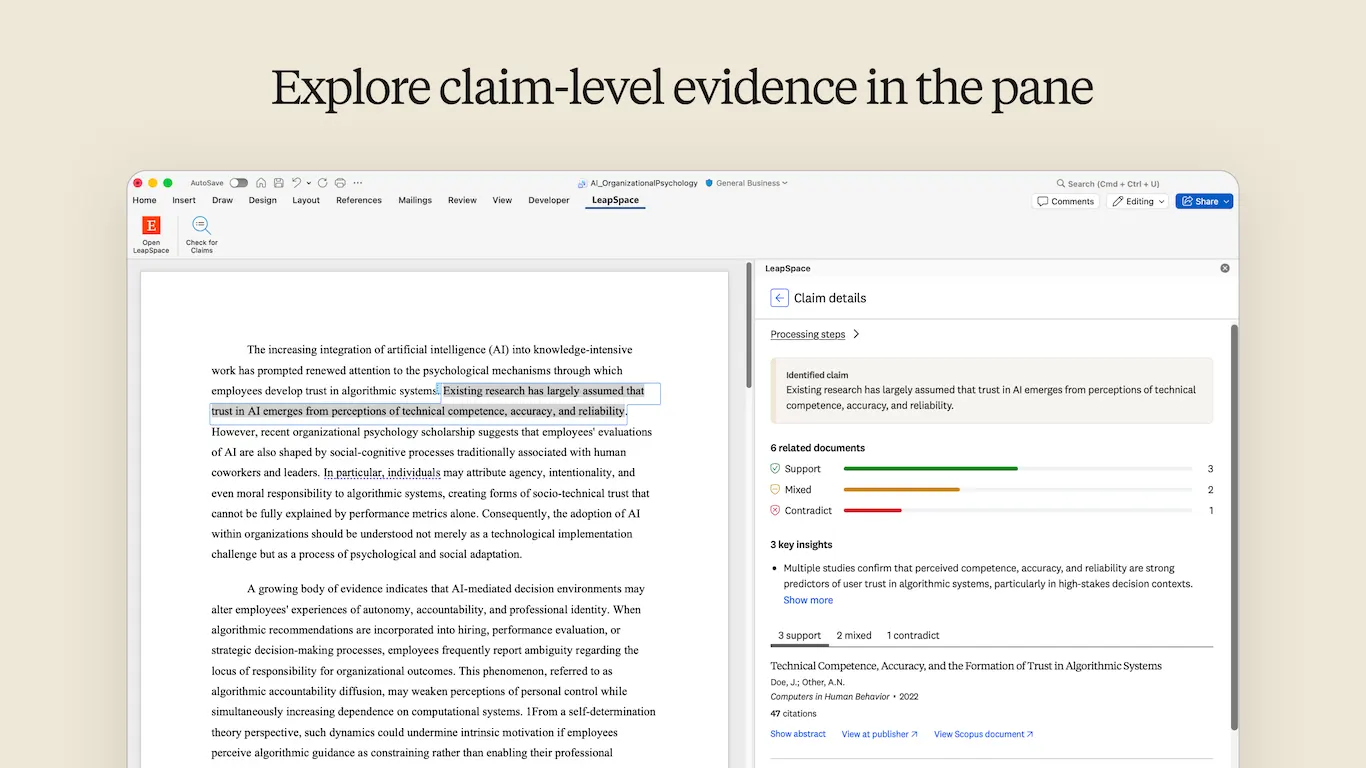
Step 4
Step 5
Frequently asked questions
LeapSpace integrated with Microsoft Word brings research tools directly into your document. The add-in’s first feature, Claim Radar, helps you check claims from your writing against the wider literature. It draws on 107M+ peer-reviewed, source-neutral citations indexed in Scopus. Claim Radar sorts the evidence into what supports the claim, what contradicts it, and what's mixed, with key insights and source documents, all inside a task pane in Word. From there, you can use the evidence and documents to build out your arguments, citing them where needed.
The LeapSpace Word add-in is published by Elsevier.
Claim Radar, which checks your claims against the wider published literature, is the first feature in the LeapSpace add-in for Word. More capabilities will follow over time, and we welcome user feedback to help shape what comes next.
The check itself runs against Scopus abstracts and metadata, the same mechanism Claim Radar uses everywhere it appears in LeapSpace. From there you can open the abstract directly or follow a link to the full article on the publisher's site.
No. Claim Radar assesses a claim against published research and shows evidence signals for you to inspect. The final judgment stays with the person who owns the writing.
No. It supports that review by surfacing evidence to check before a claim goes further, not in place of it.
A LeapSpace account and organizational plan is required. If your organization controls Office Store access, a Microsoft 365 administrator may need to enable the add-in first, see the installation steps above. For full terms, see the add-in's license agreement.
If your organization allows individual installs, select Get it now on the Microsoft Marketplace listingopens in new tab/window. If you can’t install it, ask your IT administrator to deploy it for your organizationopens in new tab/window. Then open it in Word under Home > Add-ins.
Select a short passage with specific, testable claims. If needed, use Check for Claims in the LeapSpace ribbon; it works more consistently than right-clicking text in tables or near images and links. If you see an error, select Retry. If it continues, contact supportopens in new tab/window.
Safari may block the sign-in cookie. Open LeapSpaceopens in new tab/window in another tab, return to Word, and try signing in again. If asked, allow cookies from sciencedirect.com. If sign-in still fails, refresh and retry.