
Six tips for getting started with Deep Research
Tips and recommendations for using Deep Research to support your work.
Break down complex research questions
As we continue collaborating with researchers to make LeapSpace, an AI-assisted workspace, we want to spotlight Deep Research. Designed to reinforce—not replace—your judgment, this powerful feature breaks down complex research questions and generates comprehensive, structured reports when a quick summary isn’t enough. Deep Research helps you orient faster, compare evidence and spot promising directions.
In this article, we’ll share some practical tips and tricks to help you get the most out of this powerful tool.
To start using Deep Research within LeapSpace, use “Ask a follow-up question” or start from the LeapSpace home page. In both cases, make sure that the Deep Research toggle is switched on.
1. Use Deep Research early in your research process
Deep Research is ideal for identifying knowledge gaps, mapping research landscapes, and spotting emerging themes. It is designed to synthesize multiple sources and interpret the findings, which can help save hours of research. That’s time that you can use to focus on your many other responsibilities.
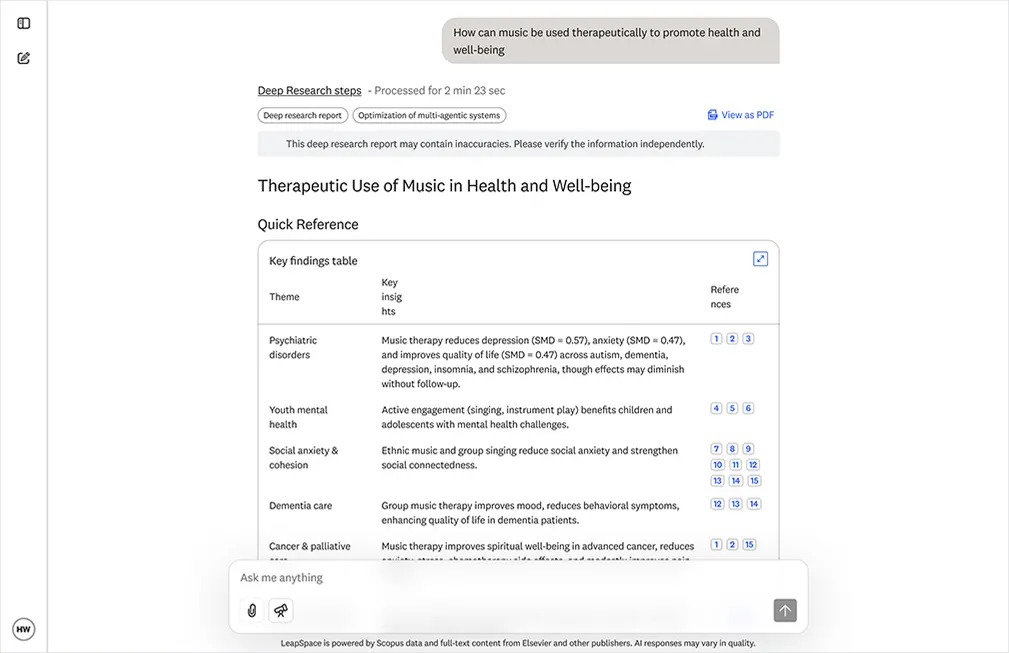
Fig. 1: LeapSpace Deep Research conversation page
2. Try Deep Research when your question is especially challenging or open-ended
Deep Research is intended for especially complex or open-ended queries. If you’re looking for information on interdisciplinary topics or new fields, you may not receive helpful or meaningful answers using generative AI. As an agentic AI tool, Deep Research goes beyond summarizing existing information. It develops a detailed research plan, conducts extensive searches across the curated literature in LeapSpace and refines its approach as new insights emerge.
Your resulting multi-page Deep Research report is designed to provide nuanced and in-depth insights, delivering a wealth of perspectives, ideas and suggestions that act as a springboard for further exploration.
3. Use natural language to write questions with clear goals
You don’t need to use Boolean logic or write with any special syntax when using Deep Research. Simply explain your problem the same way you would speak to a colleague, but be specific when describing your goal so that Deep Research responds to what you’re hoping to learn. Try to include these items in your prompt:
What you’re investigating
Why you’re looking into it
Any helpful context
4. Add constraints to make your search more precise
You can define the parameters for the references that Deep Research will use during its search. This gives you more flexibility to shape a response tailored to your needs.
And instead of selecting items from a filter, you can just type them in as you would normally speak. Currently, you can narrow Deep Research by specifying:
Country or region of primary author
Time range
Document type
Citation count
For instance, you might add something like: “Identify trends in large language model development in Germany over the past five years. Only include papers with 25 citations or more.”
If you’re looking for funding opportunities, you can filter by eligible countries. You can narrow the topical author finder by h-index, publication count or country.
5. Review and analyze your report
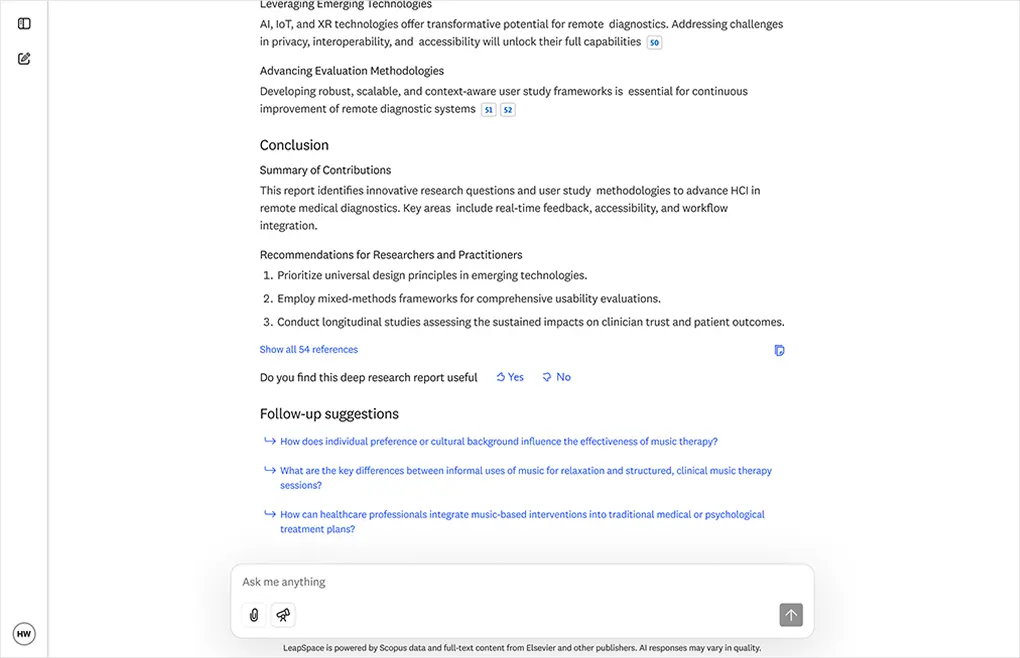
Fig. 2: Review conclusions and recommendations at the end of the Deep Research report, or continue your conversation
Once Deep Research generates your report, it’s time to review and analyze it. Check out the “Deep Research steps,” which displays the logic steps it took to prepare your report.
Then, move on to the complete report. You’ll find:
Key findings, with references
A direct answer to your query
Study scope
Assumptions and limitations
Suggestions for further reading
Introduction and synthesis paragraph
Discussion and future research directions
Conclusions and recommendations
And remember — after the report is generated, you can keep asking questions. Perhaps you want to clarify a section, explore a new angle that surfaces, request comparisons, or ask for a deeper analysis on a paper that is referenced in the report.
6. Save each report for later reference
At the top of each report, you’ll find an option to view it as a PDF. Click there to download the report and save it for later reference. It’s a good option for viewing later while commuting or traveling.
Try a Deep Research query for yourself — you’ll find that it does more than simply answer your query. Your work is important. Support it with insights that could guide you toward your next discovery. To see more information, watch this video introductionopens in new tab/window.
Next steps
Interested in learning more about LeapSpace? Sign up for email updates to get the latest news and articles with best practices, user insights, and product updates.